Get Started
Overview
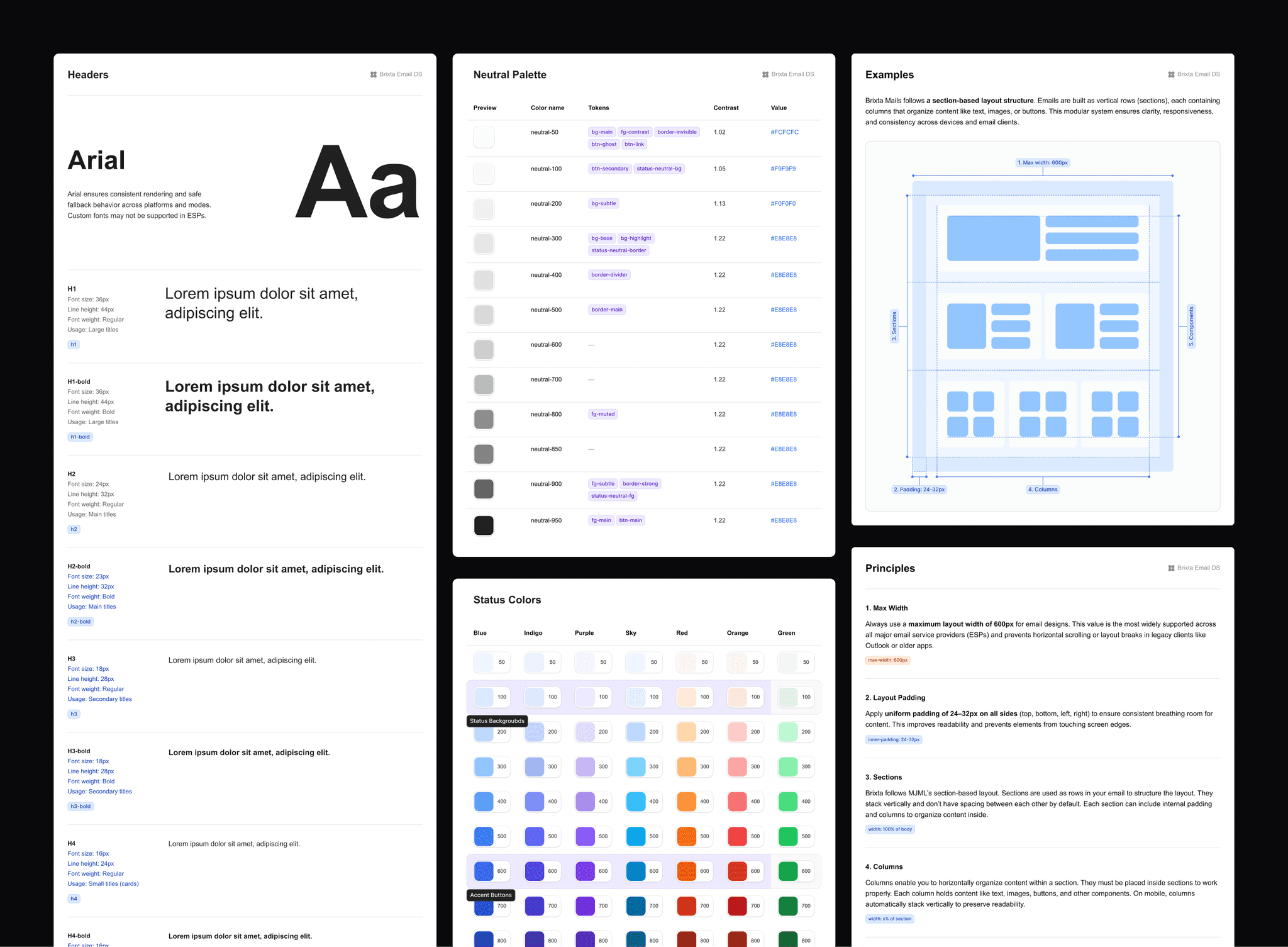
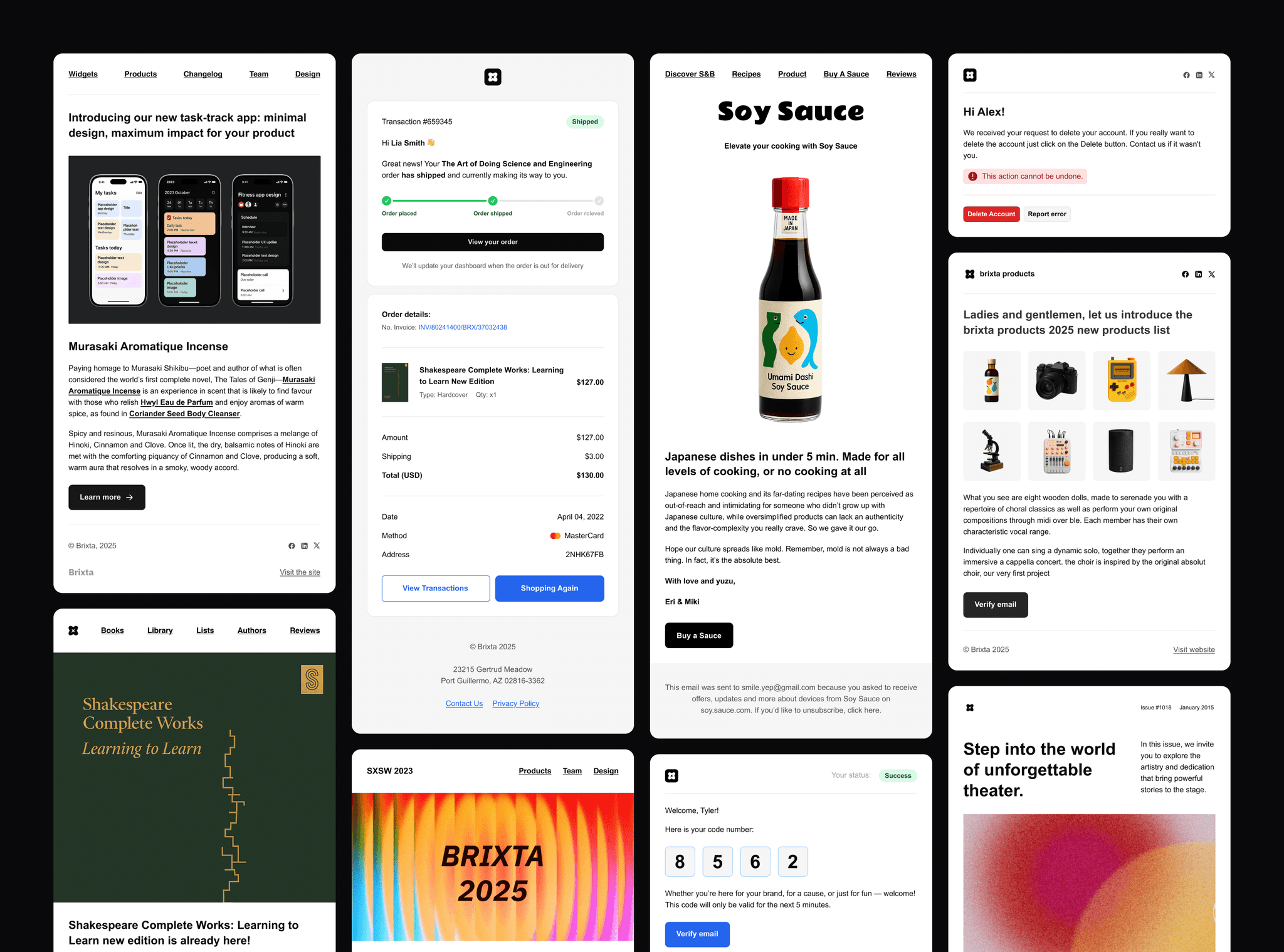
Brixta Mails is a modular UI kit for building modern responsive email interfaces. It includes clean, production-ready components and templates — available as copy-paste code snippets and Figma design assets — that you can drop into your product or email service provider and fully customize. Built with flexible theming, clarity, and compatibility in mind, so you can ship faster and own the final result.
MJML & HTML Foundation
Brixta components and templates are written in MJML. You don’t need to learn MJML to use Brixta — just copy-paste components and themes into your project. ✨
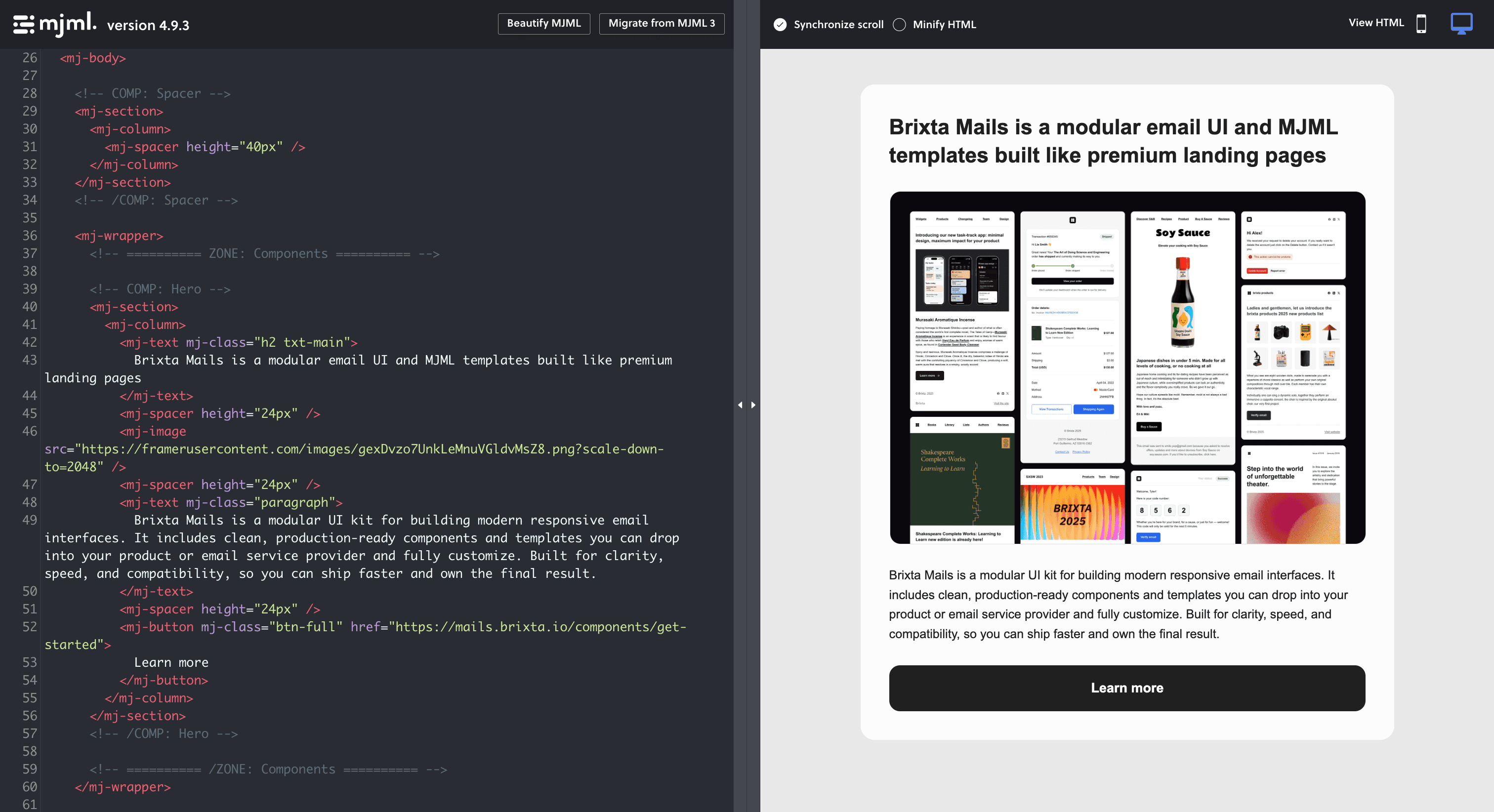
MJML is — a markup language designed to reduce the pain of writing endless HTML table nesting and email client-specific CSS. Building responsive emails is simple with semantic tags like <mj-section> and <mj-column>. This approach makes each component and template easier to write, edit, and read.
Once your component or template is ready for production, you can generate high-quality responsive HTML compliant with email best practices using MJML's open-source engine.
To install MJML read MJML Installation. You can compose emails directly in a .mjml file using your code editor. If you don't want to install anything, use MJML's online editor.
How to Use
Get Started
Start with Brixta's base template — a pre-built MJML structure with three clearly marked zones. Set your email subject and preview text in ZONE: Meta, apply one of the ready-made Brixta themes in ZONE: Theme, then insert Brixta components in ZONE: Components.
Copy this template into your project before inserting components and theme configurations:
Set Meta Information
Insert your email title in <mj-title> and preview text in <mj-preview> inside the meta zone. This controls how your email looks in the recipient’s inbox.
Title defines the document's title that browsers show in the title bar or a page's tab. Preview allows you to set the preview that will be displayed in the inbox of the recipient.
The meta zone is located inside <mj-head> and marked with comments: ZONE: Meta (start) and /ZONE: Meta (end).
Apply Themes
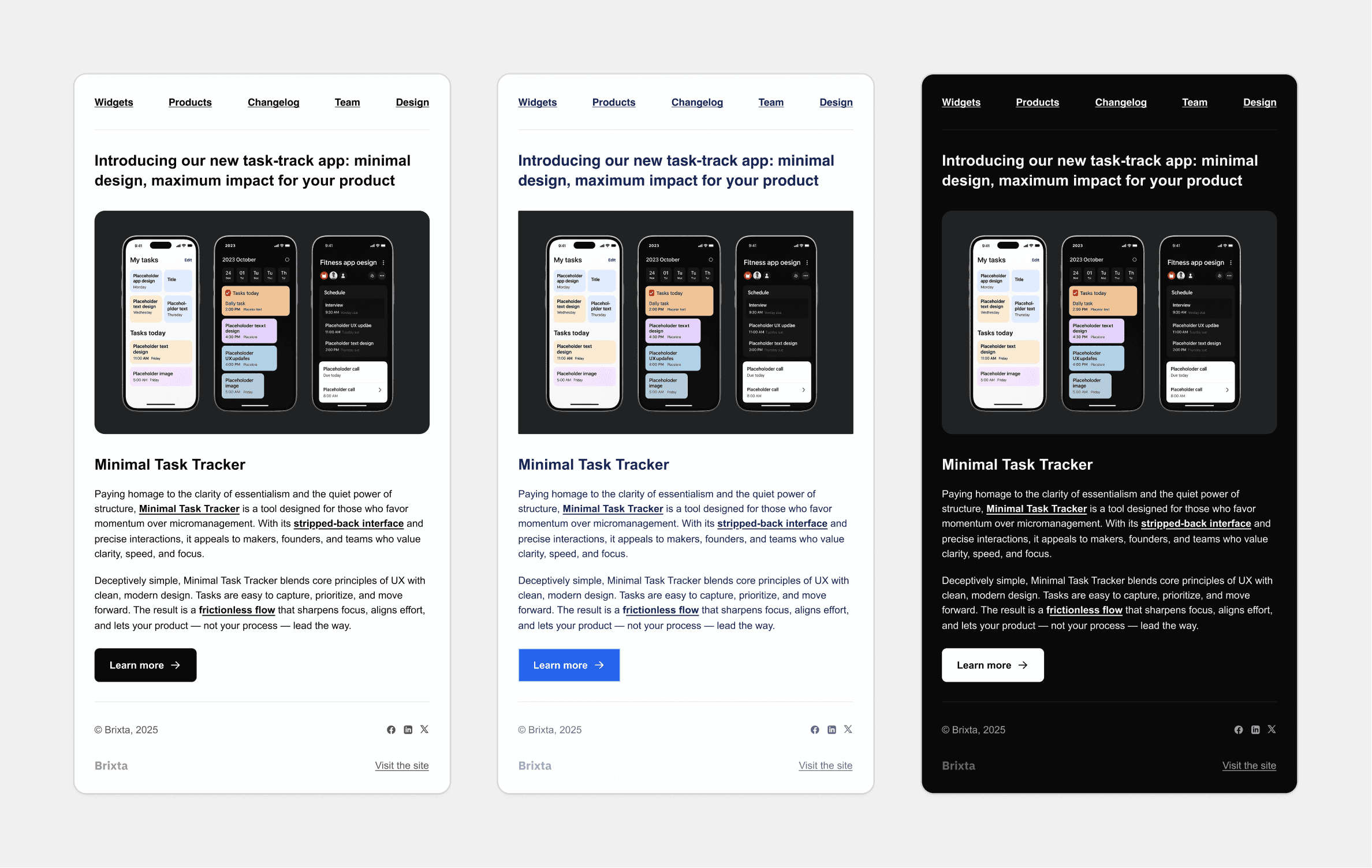
Brixta Mails supports instant visual customization through theming. By editing or replacing the theme configuration inside the theme zone, you can instantly adapt your templates for different use cases — from modern SaaS to formal enterprise or dark mode.
The theme zone is a global style configuration located in the <mj-attributes> block inside <mj-head>, marked with comments: ZONE: Theme (start) and /ZONE: Theme (end).
Insert Components
Insert components into your layout to build your template. Each component is a standalone <mj-section> block, designed to work visually with any other component, and marked with comments: COMP: Component name (start) and /COMP: Component name (end).
The сomponents zone is located in the <mj-wrapper> block inside <mj-body>, marked with comments: ZONE: Components (start) and /ZONE: Components (end).
Separate sections
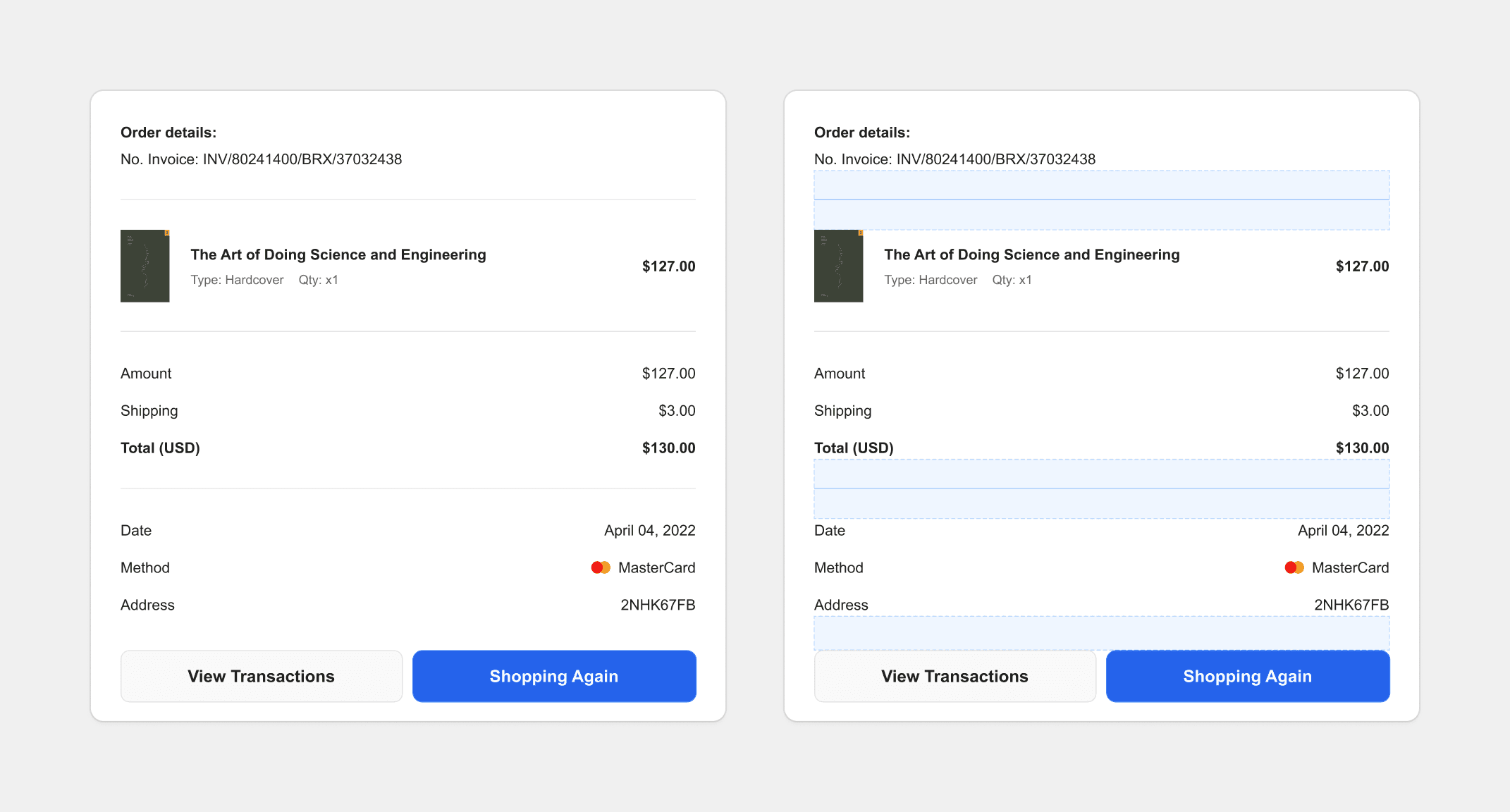
Use dividers and spacers between components to visually separate them. In Brixta, divider and spacer components are the only way to separate sections — main components have no internal margins to allow flexible stacking. This ensures consistent spacing and a clean, modular layout across all templates.
Export and Use HTML
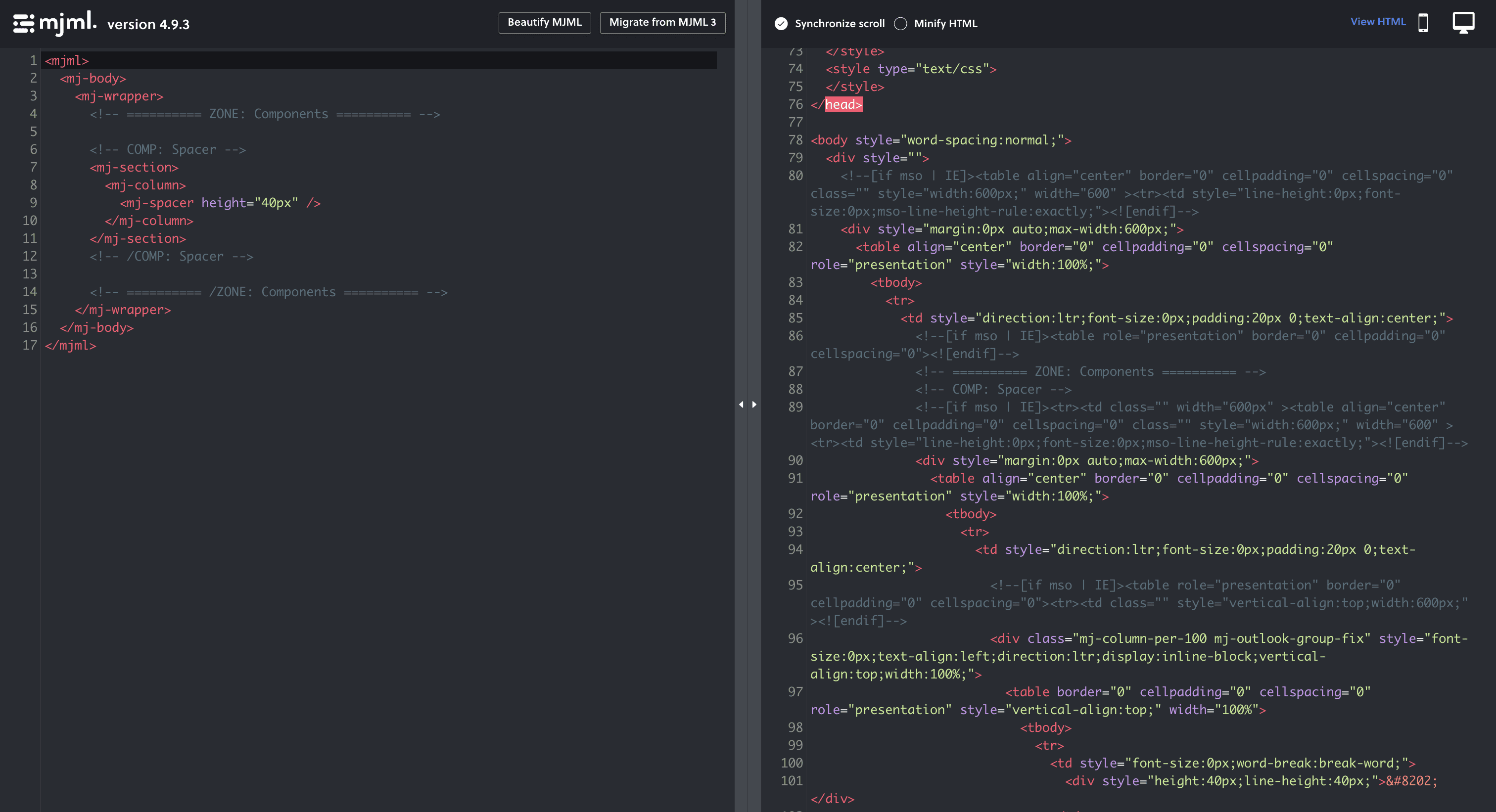
Once your template is ready for production, generate clean responsive HTML using MJML’s open-source engine. Then simply copy the output into your app or email service provider like HubSpot, Mailchimp, or others.
ESP Constraints
Brixta Emails UI System is built with deep respect for Email Service Providers (ESP) constraints. Unlike web development, email clients like Gmail, Outlook, Apple Mail, and Yahoo impose strict limitations that affect how emails render and display.
Among these constraints:
🌑 Color inversion in dark mode on certain ESP and device combinations
🔤 Limited custom fonts support across email service providers
📊 Table-based HTML requirement with constructions for Outlook and inline CSS
📐 Layout width limitations — recommended maximum of 600px for email templates
🖼️ Image format restrictions and blocked links from popular cloud storage services
📦 Size limitations of 102KB before Gmail clips shows "[Message clipped]" to recipients